 Timeglass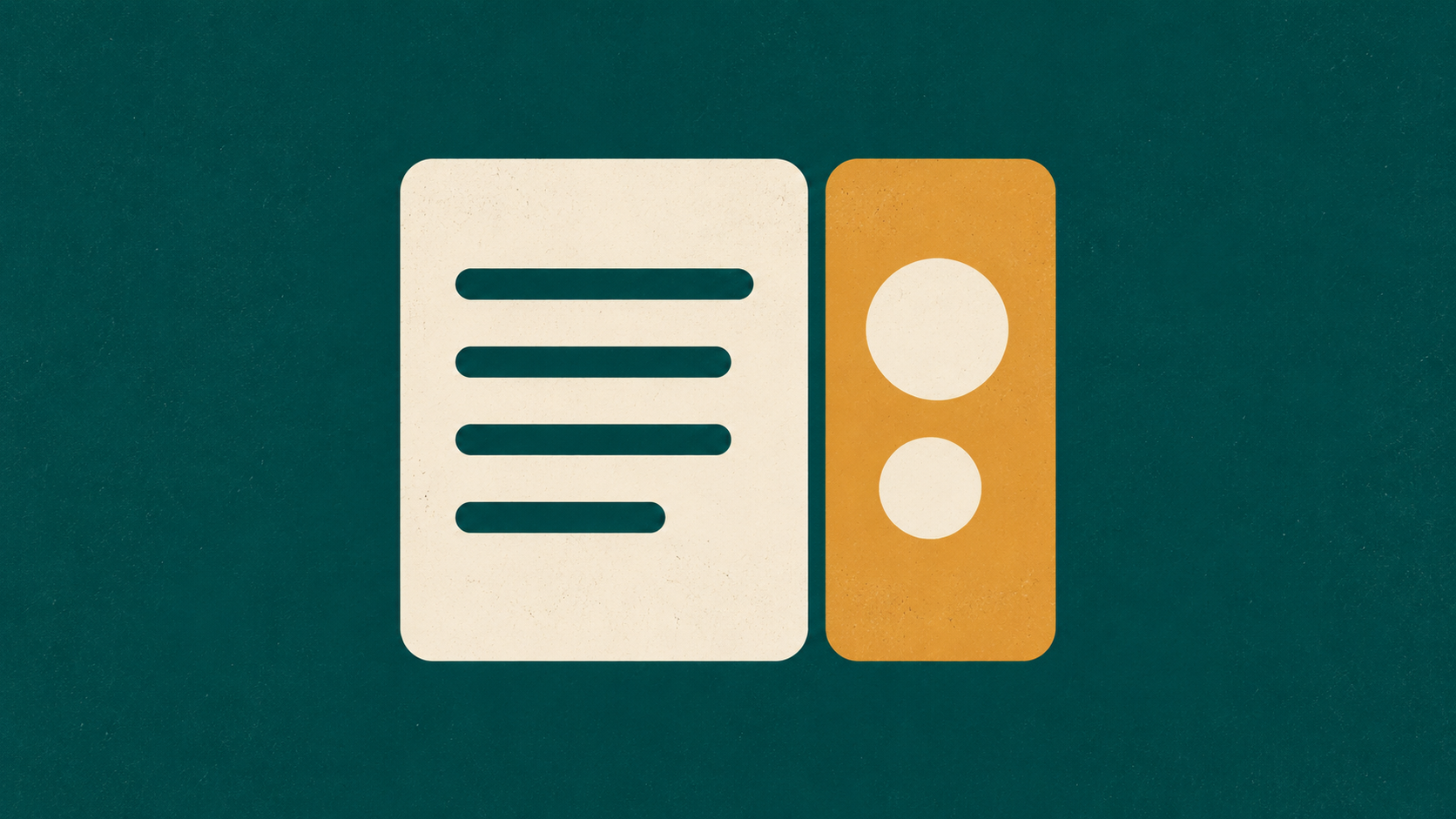
Inside Chrome, you can now have your Timeglass dashboard on one side and an AI chat open next to it. Both pages stay visible while you ask questions, read the answers, and check the information in Timeglass.
The Timeglass Chrome extension opens the two pages in Chrome's split view. With your AI connected to Timeglass, you can ask about the project, person, client, or meeting you have open, then ask follow-up questions without switching away from that view.
Open Timeglass and AI chat in the same Chrome window
Open Timeglass, click the extension in the browser toolbar, and choose a chat. The extension's Chat menu can open ChatGPT, Claude, Gemini, Copilot, Perplexity, Grok, or DeepSeek.
Opening a chat and connecting it to your Timeglass data are separate steps. Timeglass provides connector setup instructions for ChatGPT, Claude, and Gemini. To retrieve your work records, the chat you choose needs a working Timeglass connector.
What the AI receives from Timeglass
When sharing is on, the extension can identify the project, person, client, or meeting you have open. You can also use Add to chat on a record to keep it selected for the conversation, or type # in the chat to find a person or project and insert its name.
This is shared record context, not a live image of your dashboard. The extension can add a reference to the open record and attach a file identifying your selected records. It does not send every chart, number, or page element that happens to be on screen.
The Timeglass MCP connector lets the AI retrieve data for those records within your account's permissions. For example, it can provide a summary of a project's hours and budget, or details from a meeting. Set up the Timeglass connector in your AI service before asking it to look up that information.
Check the sharing indicator to see the open record and selected items. You can turn sharing off. You still send each message yourself, and turning sharing off does not remove information already sent to the AI service.
Ask questions while you review a project
For example, open a project in Timeglass and ask, “How many hours have been recorded for this project?” With the connector enabled and the project shared, the AI can use that record to identify which project you mean.
Keep the project visible as you read the answer. You can check its hours, open another record, and ask a follow-up question in the adjacent chat. The AI can retrieve record data in response to your question; it is not continuously watching your screen.
Browser meeting support for the Mac app
The extension also passes information about a browser meeting's tab and what you are sharing to the Timeglass desktop app. This helps the app record the screen your colleagues see.
This feature requires the Timeglass desktop app for macOS. The extension itself does not read meeting audio, video, or chat. Recording is handled by the desktop app, using its recording settings and controls.
See the guide to meeting detection and recording for those settings.
Get started
1. Install the Timeglass Chrome extension from the Chrome Web Store.
2. Open Timeglass in Chrome and sign in. Click the extension in the browser toolbar, choose Chat, and select your AI service. Sign in to that service and approve the requested access to its site.
3. Use a current version of Chrome with split view support. If the pages open as separate tabs, use Chrome's split view to put them side by side.
4. Set up the Timeglass connector in your AI service. Open a project, person, client, or meeting in Timeglass, check what is shared, and ask your question in the chat next to it.
For browser-meeting support, install and connect the Timeglass desktop app on your Mac too.
Try the Chrome extension
Already using Timeglass? Install the extension and open an AI chat next to your dashboard. New to Timeglass? Start your fourteen-day free trial.
Common Questions
Common questions
Can the AI see everything on my dashboard?
The extension shares the open record and selected record context, not a continuous screenshot of the dashboard. The Timeglass connector retrieves permitted record data when the AI asks for it.
Does opening an AI chat connect it to Timeglass automatically?
Opening the chat is separate from setting up its Timeglass connector. Connect the AI service to Timeglass before asking it to retrieve work records.
Do I need the Mac desktop app to use the chat view?
The macOS desktop requirement applies to browser-meeting recording support. Viewing Timeglass and an AI chat side by side is a separate browser feature.