

Every Monday, we share what changed in Timeglass the week before. We’re a small team, and a lot of what we build starts with a conversation about something that could work better. Keep those conversations coming: use Contact Support in Timeglass to tell us what’s useful, what’s frustrating, or what you wish it could do.
The update we’re most excited about this week is being able to replay your meetings. In Meetings, you can now watch the video alongside the summary, see when each speaker spoke, and read the transcript. We also made it easier to review time, organize related work, and manage the computers your team uses.
Replay your meetings in one place
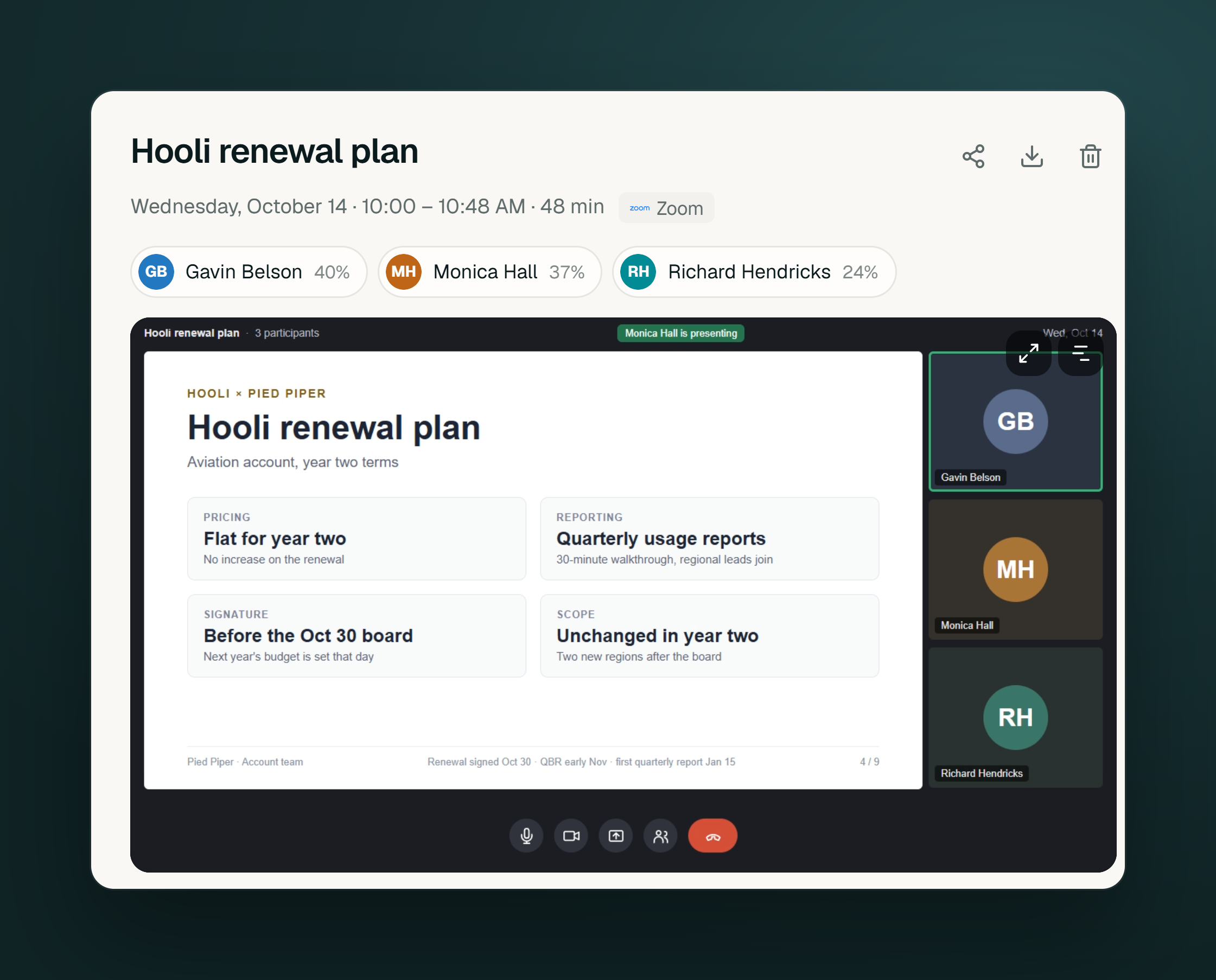
This is one people have been asking for, and we’re excited to share it. Open a recorded meeting in the Meetings section and you can replay the video, catch up with the summary, see when each speaker spoke, and read the transcript in the same place.
We built this so you can return to a conversation and find the detail you need, whether that’s a decision in the summary or a document someone showed on screen. Keeping the video, speaker timeline, and transcript together helps you pick up where the conversation left off.
Update the Timeglass desktop app and turn on Record video in Meetings settings. After the meeting, you can replay the recording and open it in a larger pop-out player for a closer look.
Review and edit entries on the client’s page
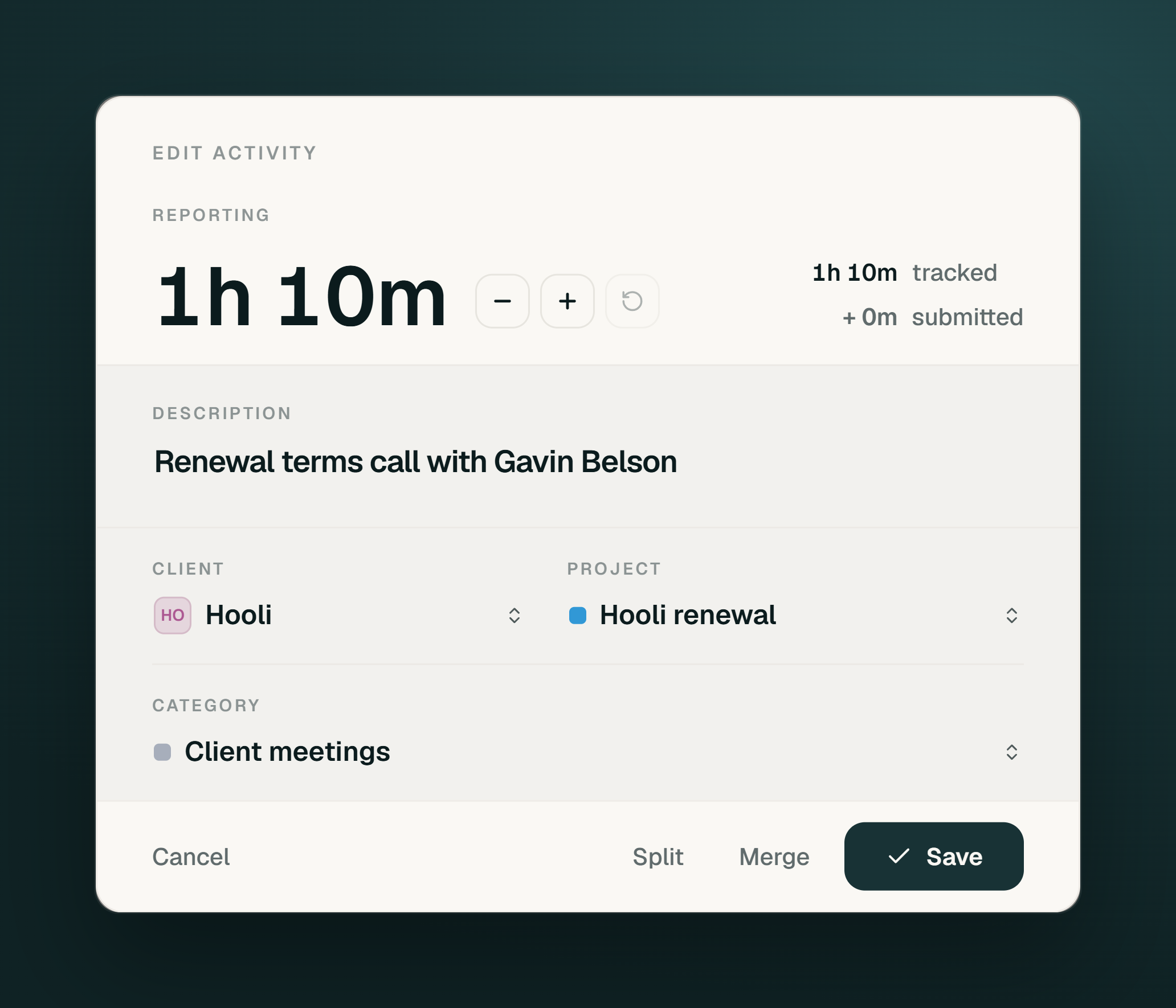
A recurring theme in our conversations has been trust in the details: did this time go to the right client, and does the entry reflect the work? We wanted checking and correcting an entry to fit naturally into that review.
You can now open and edit an activity directly from Projects & Clients, including entries in No Project Identified. Split work that covered two clients, merge related entries, or adjust the entry while the surrounding work is still in view. Managers with permission can review and edit their team’s entries there too.
Categorize related entries in one step
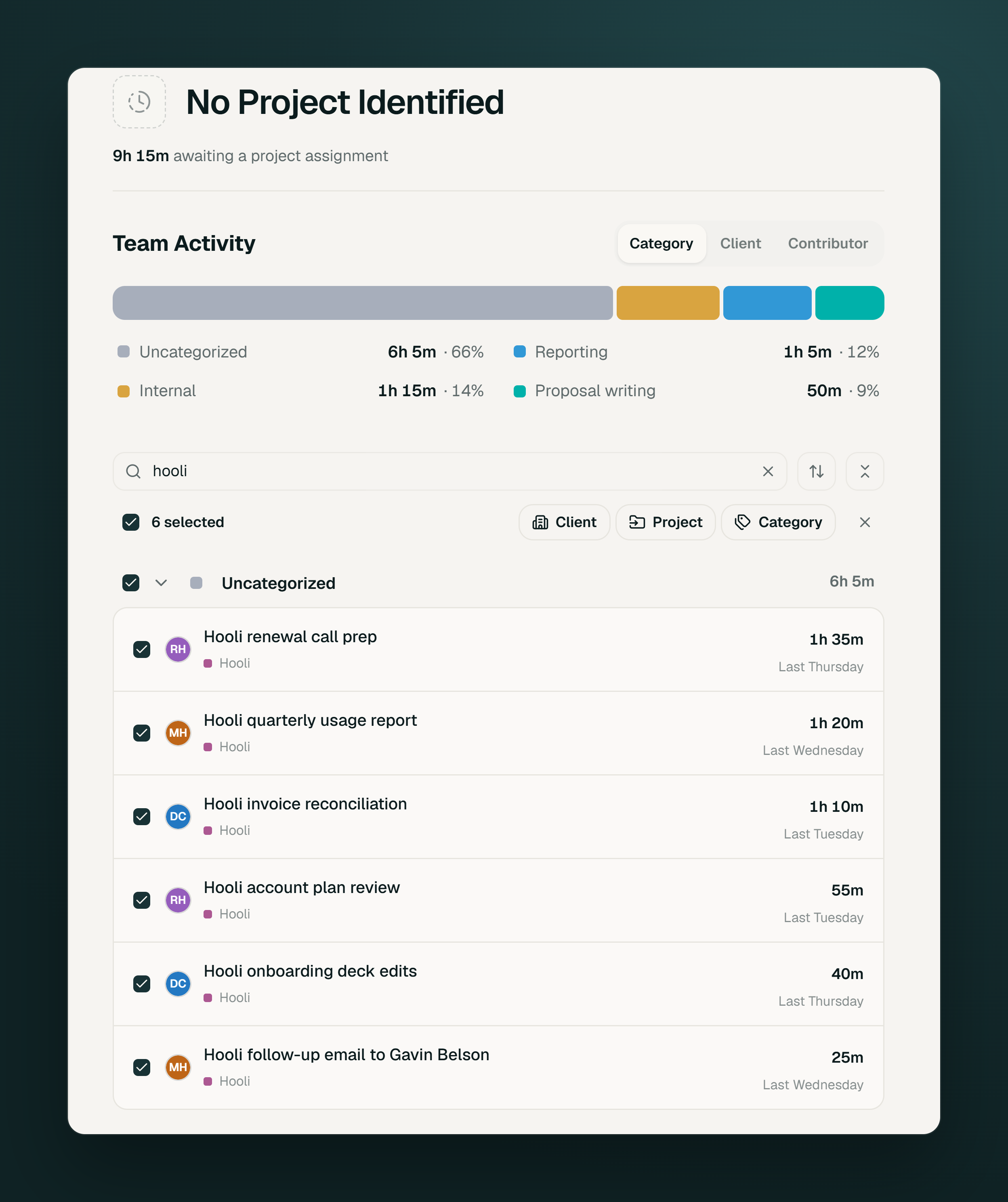
Grouping similar work helps you understand where time goes. We wanted to make that easier when several entries belong in the same category.
Now you can select entries in Projects & Clients and use Category to change them together. In No Project Identified, search for a word such as “renewal” to find related work, select the matching entries, and categorize them in one step. Undo is available while you review the change.
Your team’s history stays available when its work moves
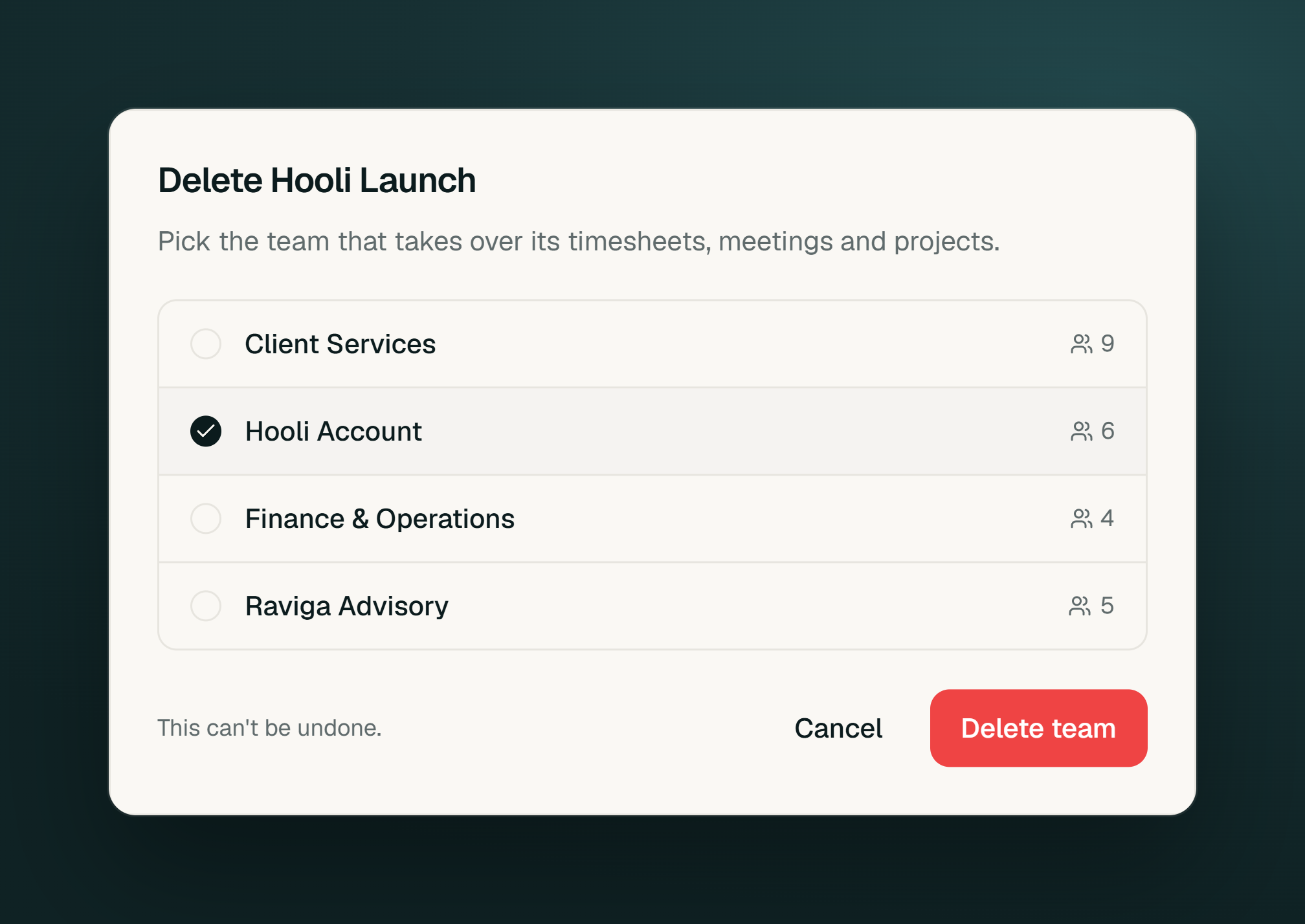
When teams change, their past work can help you plan what comes next. We wanted removing an old team to include a clear handoff for its history.
When you remove a team, you now choose another team to receive its history first. Timeglass moves the records before removing the old team, keeping past work available for review. You’ll need permission to manage both teams, and another team must be available to receive the history.
Check which computers a teammate uses
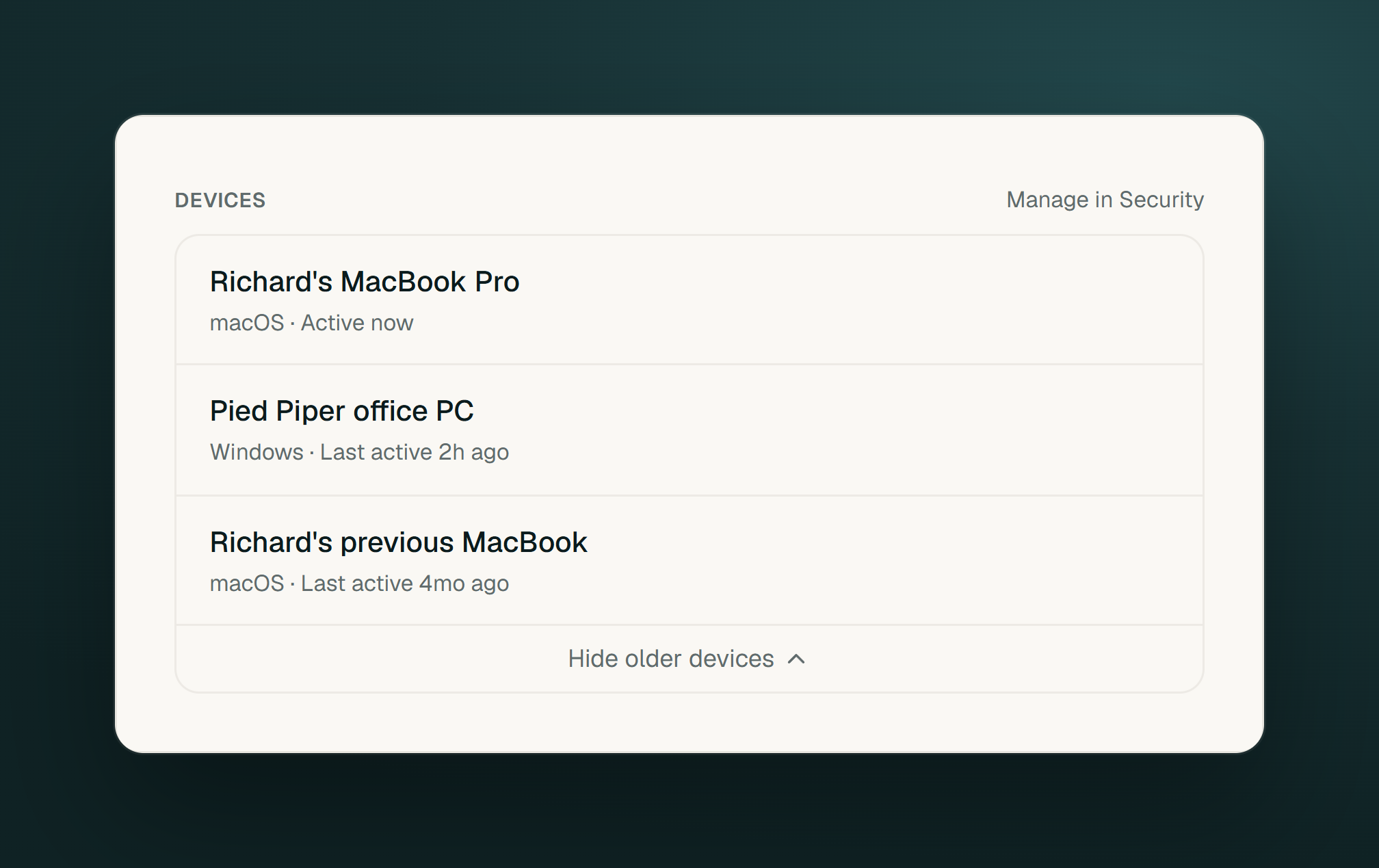
Helping someone get set up is easier when you can see which computers are connected. The member panel now brings a teammate’s devices and recent activity together in one place.
Administrators and eligible managers can open the person in Timeglass Settings to review the list. It’s a simpler starting point when you’re checking a setup or helping someone who works across more than one computer.
Shared computer logins can each have their own assignment
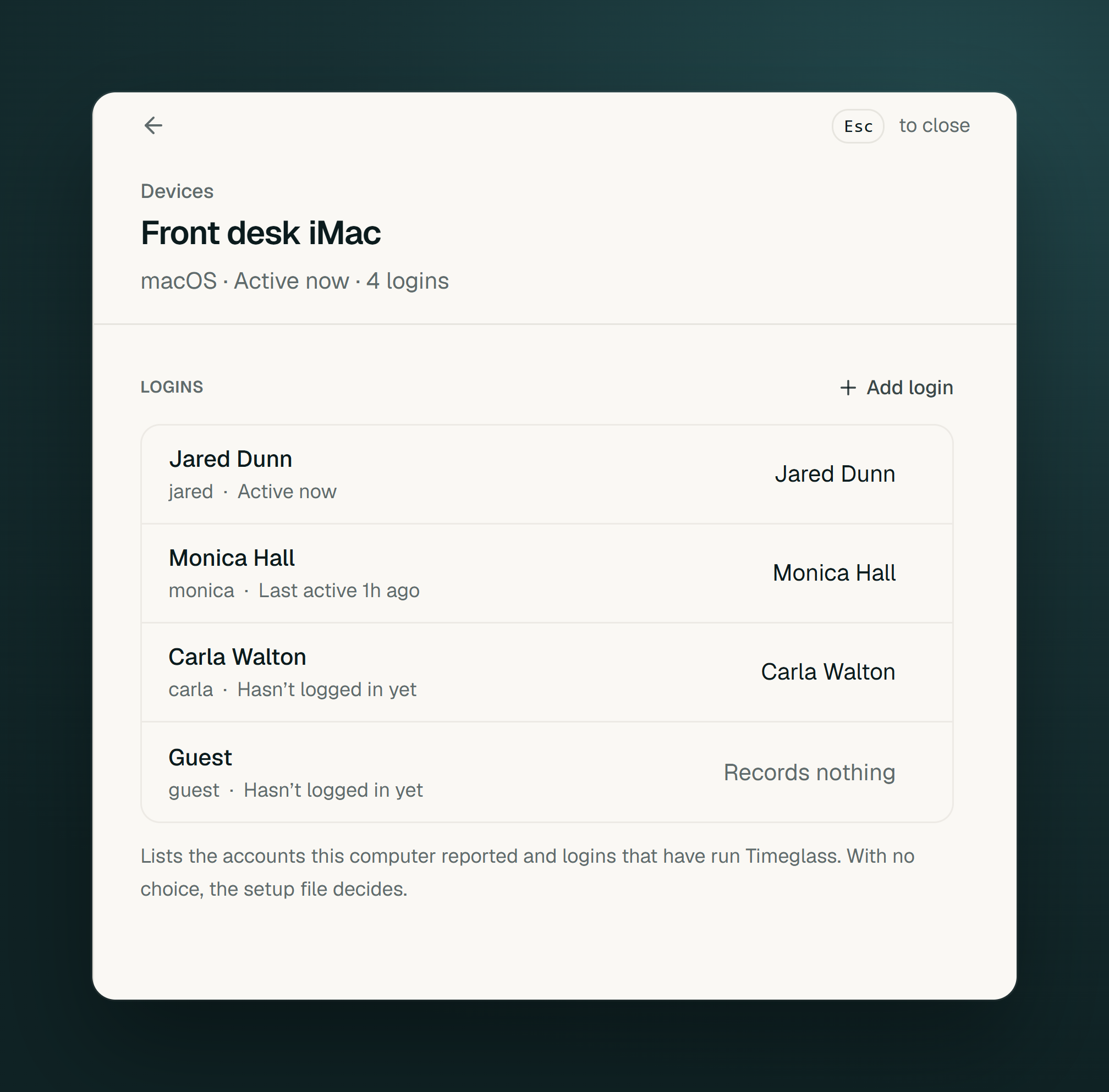
People who share a computer need their work recorded under their own accounts. We built these controls so administrators can connect each computer login to the team member who uses it and check that work is going to the intended account.
In Team Deployment, managed Macs can have a separate assignment for each macOS login. Windows teams can use the headless per-machine installer to set up multiple logins on a shared PC. The device list groups logins by computer, so it’s easier to see who each one records for.