Settings & admin
Set billable and cost rates
Add dated billable and internal cost rates to a workspace member.
Set a member's billable rate and internal cost rate so Timeglass can calculate billable value and project margin.
Open the member profile
- Open SettingsSelect Settings in the main navigation.
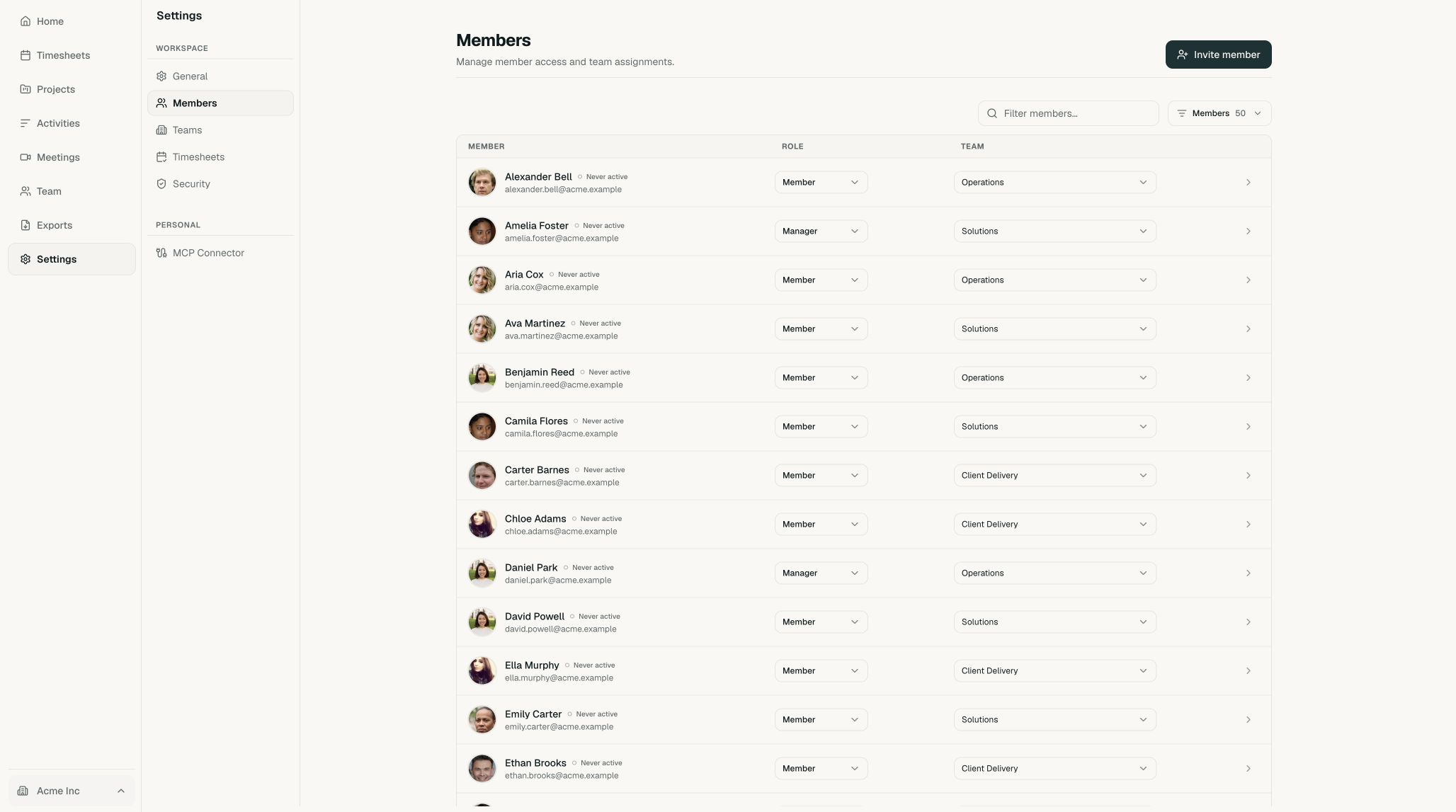
Settings is near the bottom of the main navigation. - Open MembersSelect Members in the Settings menu.
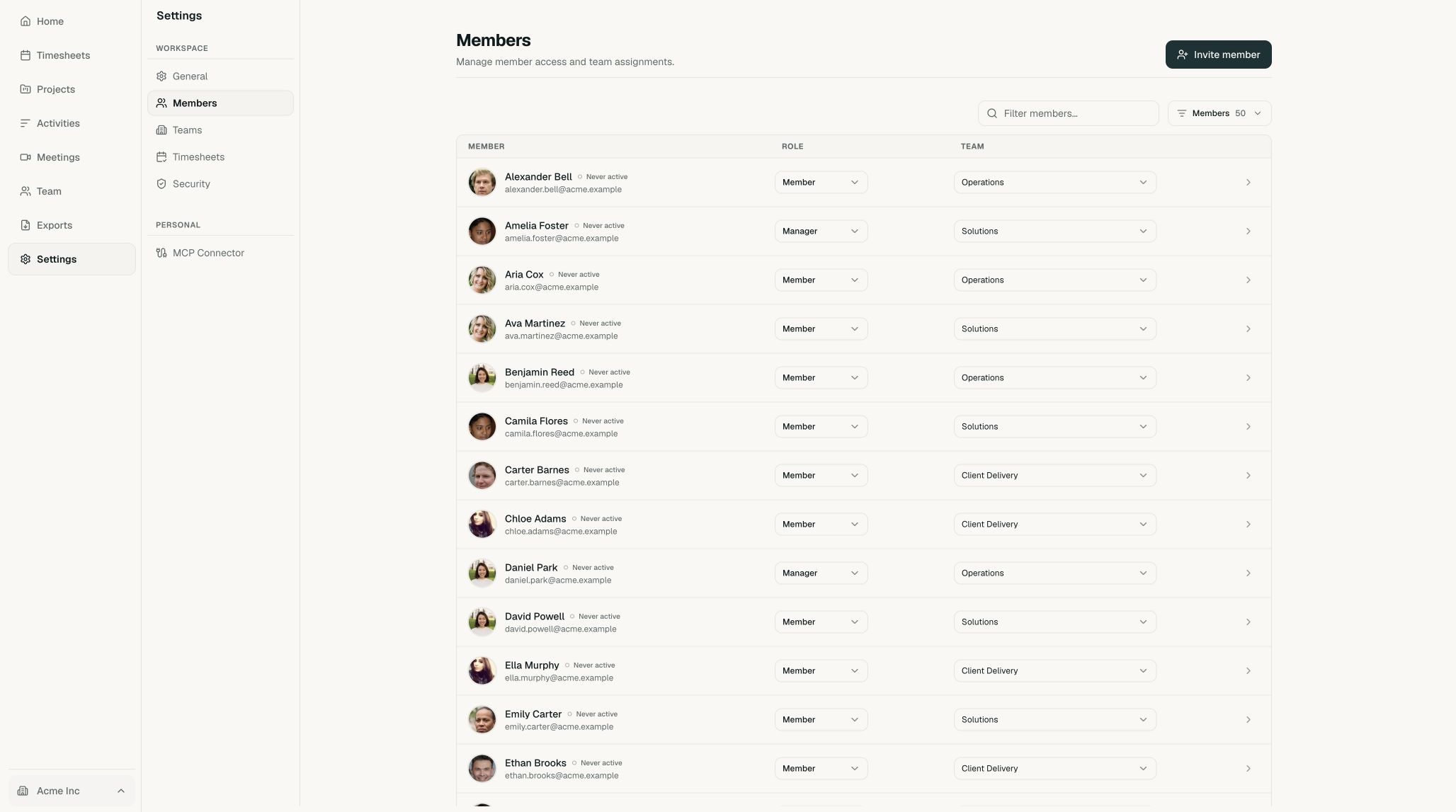
The Members page contains the people in your workspace. - Select a memberSearch for the person, then select their row to open the member profile.
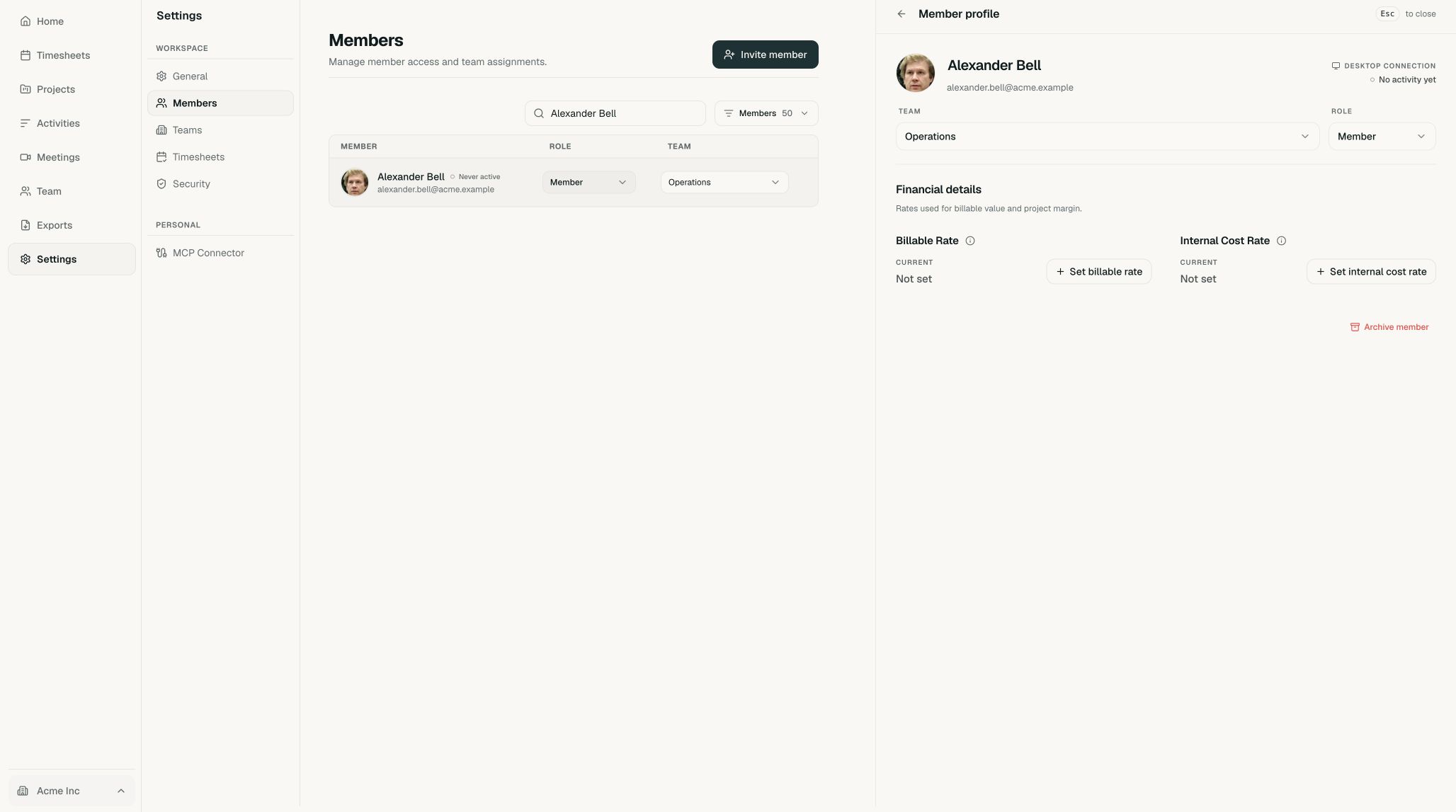
Use the search field when your workspace has a long member list.
Set the billable rate
Open Financial details. This section shows the member's current billable and internal cost rates.
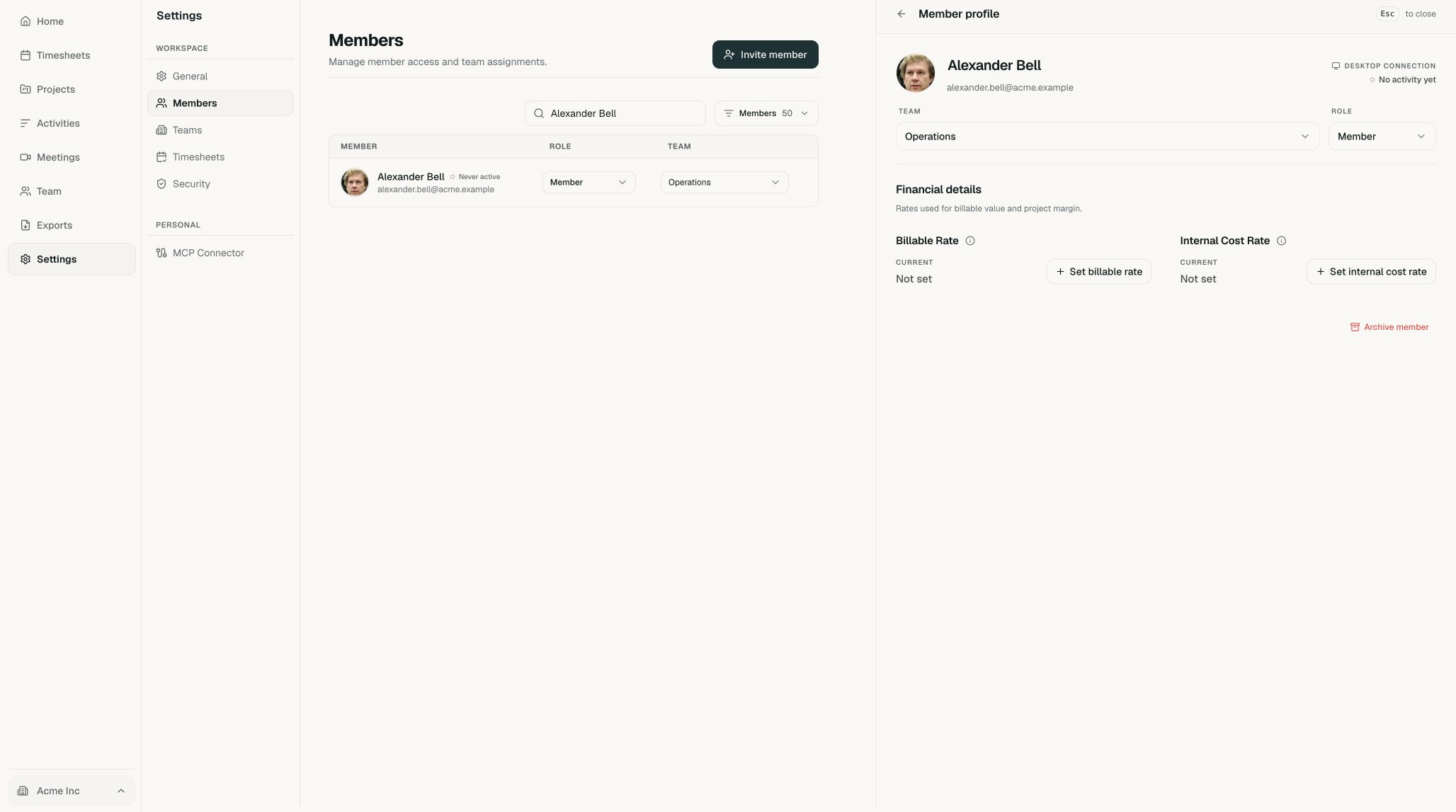
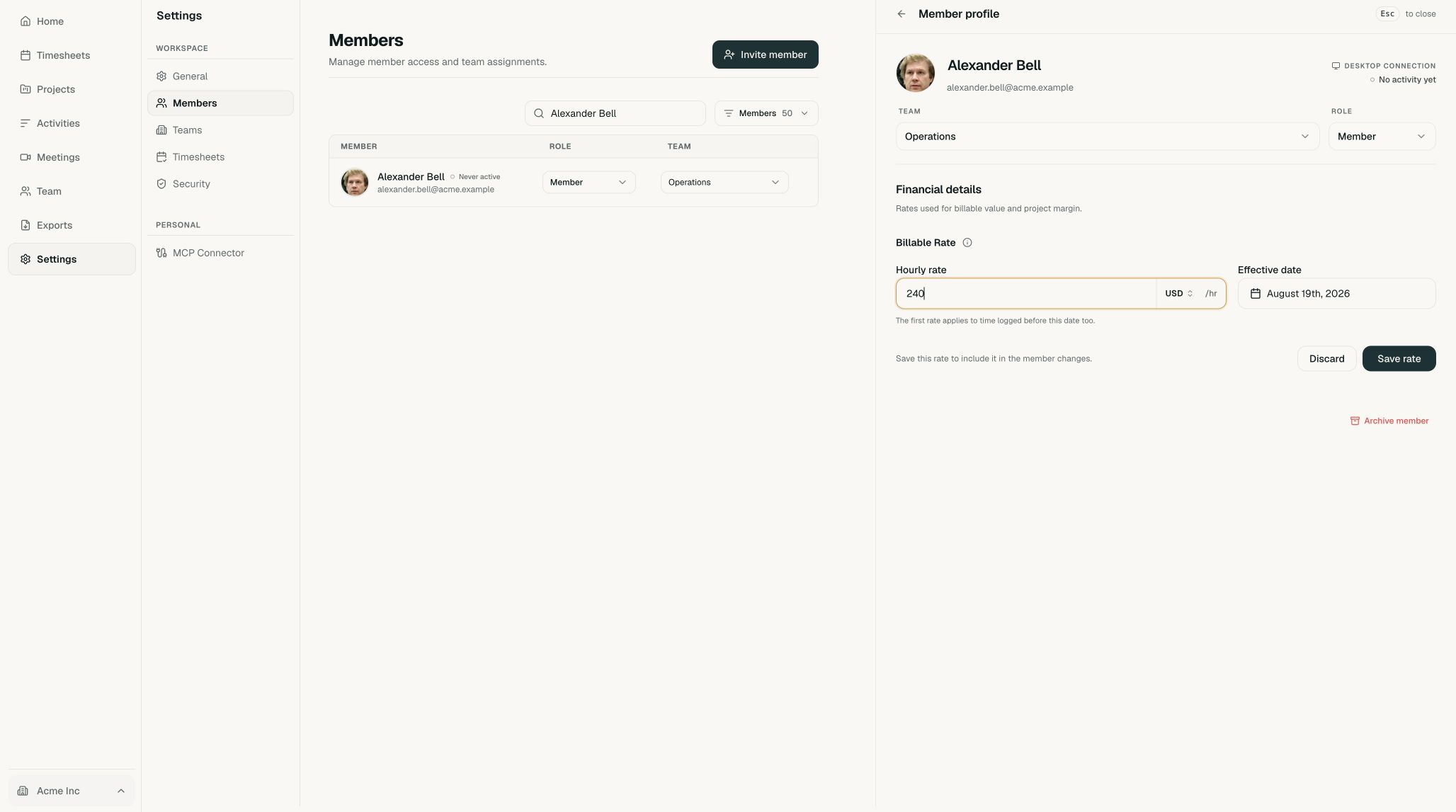
- Select Set billable rateEnter the hourly amount, choose the currency, and set the date when the rate takes effect.
- Stage the rateSelect Save rate. This adds the rate to the member form; it does not save the member yet.
Set the internal cost rate
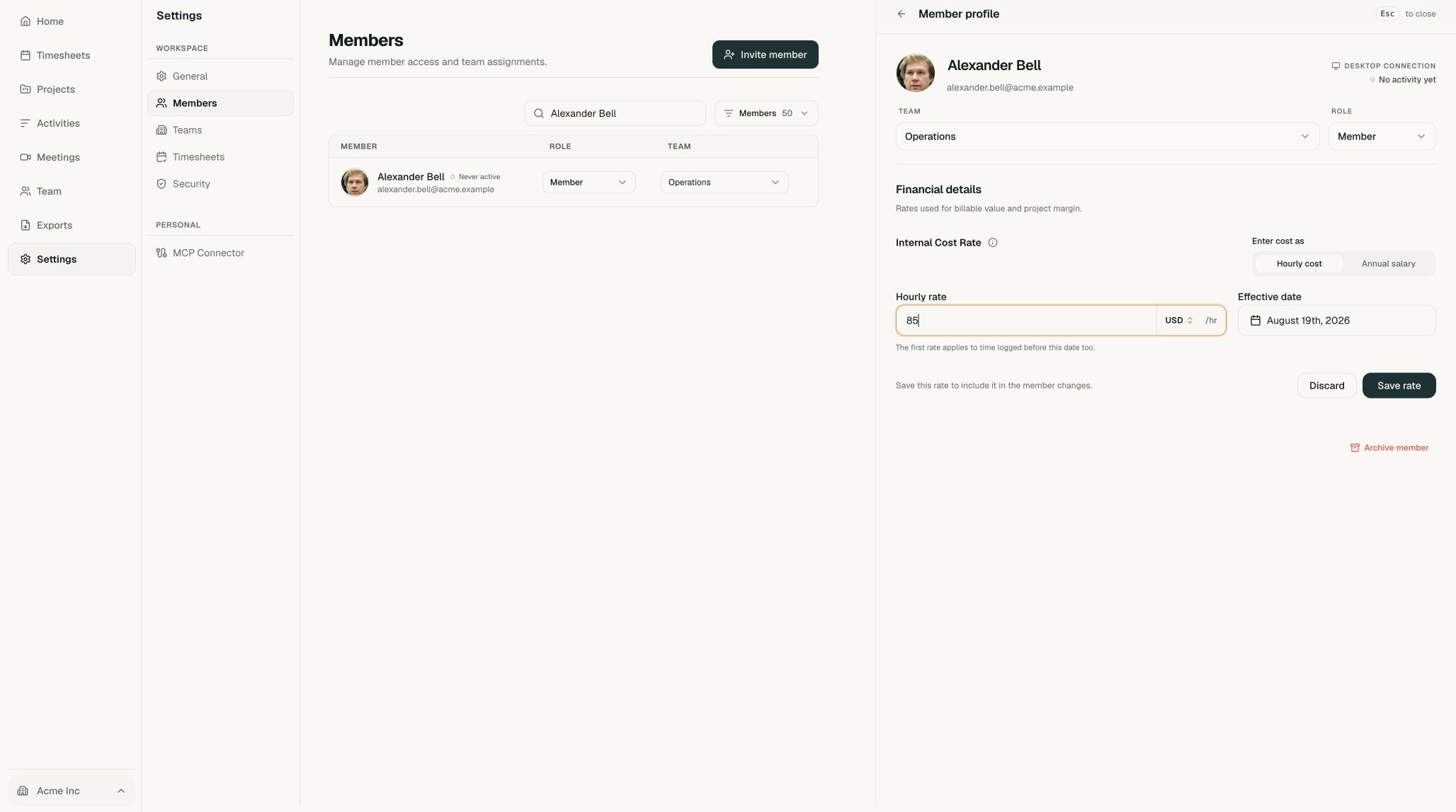
- Select Set internal cost rateChoose Hourly cost or Annual salary, then enter the amount and currency.
- Choose the effective dateSet the date when the cost rate should apply, then select Save rate.
Save the member changes
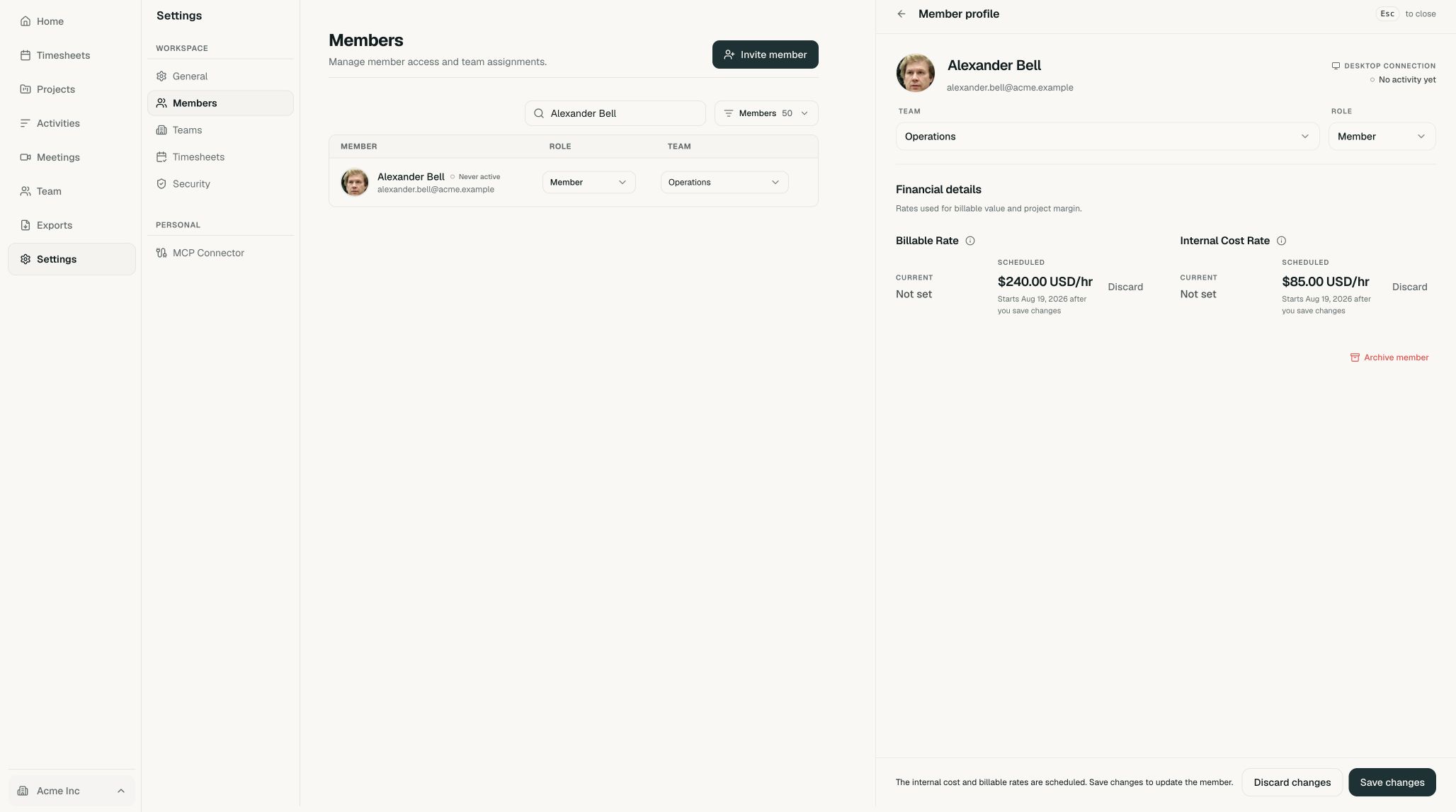
Review the scheduled rates in Financial details. Check the amounts, currency, and effective dates before saving.
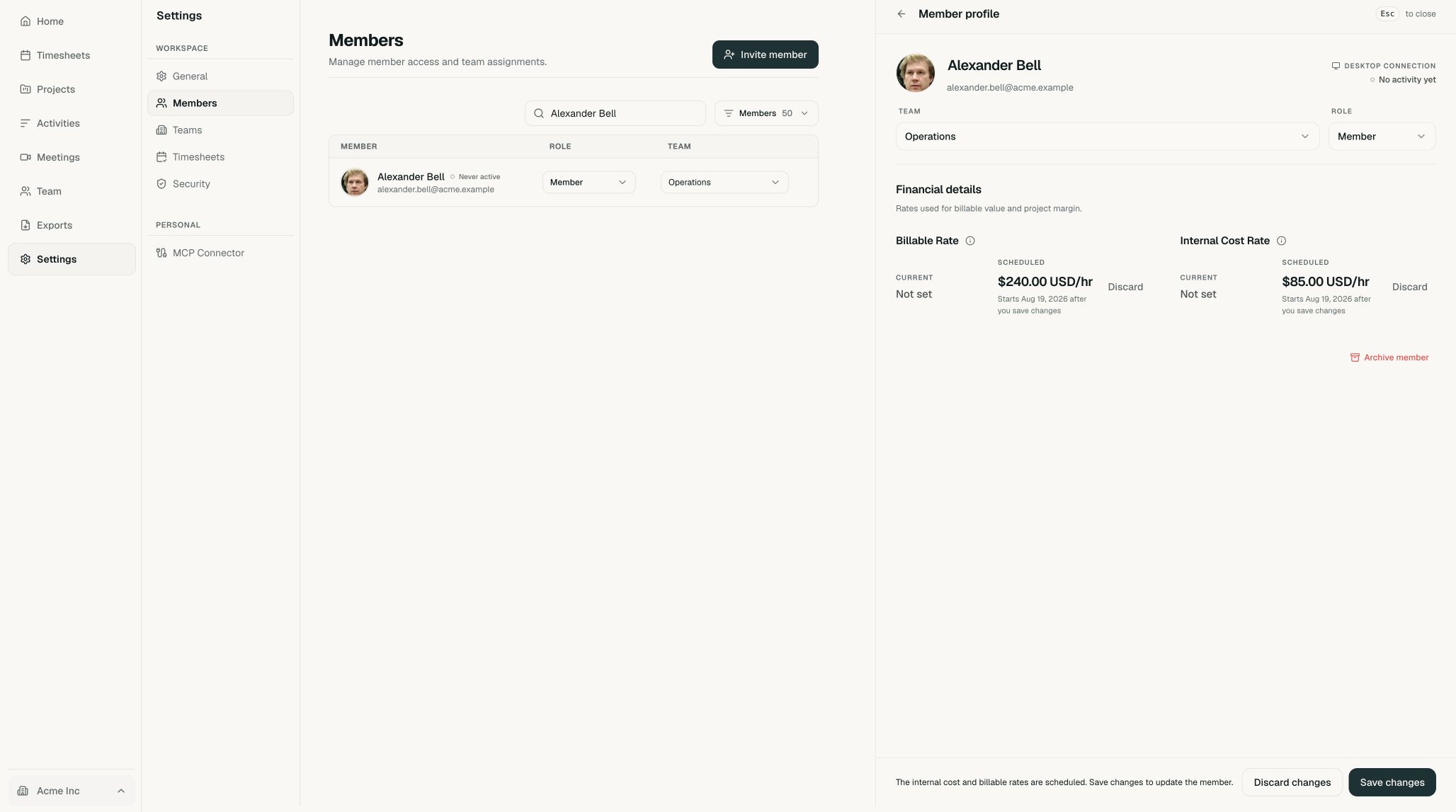
Select Save changes at the bottom of the profile. The rates are only applied after this final step.
How effective dates work
- The first rate also applies to time logged before its effective date.
- When a rate changes, add the new amount with the date it should take effect.
- Timeglass keeps the dated rate history so earlier periods retain the correct value.
Common questions
Can I set only one of the two rates?
Yes. Billable and internal cost rates can be set independently.
Can I change a rate later?
Yes. Add the new amount and the date it takes effect. Timeglass keeps the earlier dated rates in the member’s rate history.